
How to measure HRV with your iPhone camera
You can take an HRV measurement in Wellhero with your iPhone's rear camera and flash. Place your fingertip over the camera shown in the app, hold still, and let the measurement finish. You don't need an Apple Watch or a chest strap.
Download Wellhero on the App StoreBefore you start
Install Wellhero on an iPhone with a working rear camera and flash. You'll need to allow camera access when the app asks for it.
Choose a comfortable position where you can keep your phone and hand still. For readings you want to compare over time, use similar conditions and the same measurement method.
Take your first camera measurement
1. Choose Phone Camera in Wellhero
Open the measurement screen and select Phone Camera. If you've already set the camera as your default measurement method, Wellhero can take you straight to that flow.
Allow camera access if prompted. Read the finger-position guide before starting your first measurement.
2. Check which lens to cover
Follow the diagram Wellhero shows for your iPhone model and selected camera. The recommended lens varies between models, so don't assume that the largest lens is the right one.
Position your index finger so it fully covers that lens and the flash can shine through your fingertip. Keep your grip light. Pressing hard or twisting your finger can interfere with the signal.
3. Start the measurement and keep still
Tap Start measurement. Keep your finger in place while the app prepares the camera and begins collecting the signal. Breathe normally and avoid talking or moving your hand.
Watch the on-screen instructions and progress indicator. Wait until Wellhero finishes collecting the measurement. The time needed can vary with your pulse and the usable signal, so use the app's progress rather than a separate timer.
4. Review the result
After processing, review your measurement in Wellhero. Check its quality before comparing the numbers with earlier readings. The report can show heart rate, HRV and Wellhero's stress and energy estimates.
Detailed analysis includes metrics such as RMSSD and SDNN when the measurement has the data needed to calculate them. Some report details require Wellhero Pro. You can see an example report on the HRV app for iPhone page.
What the signal on screen means
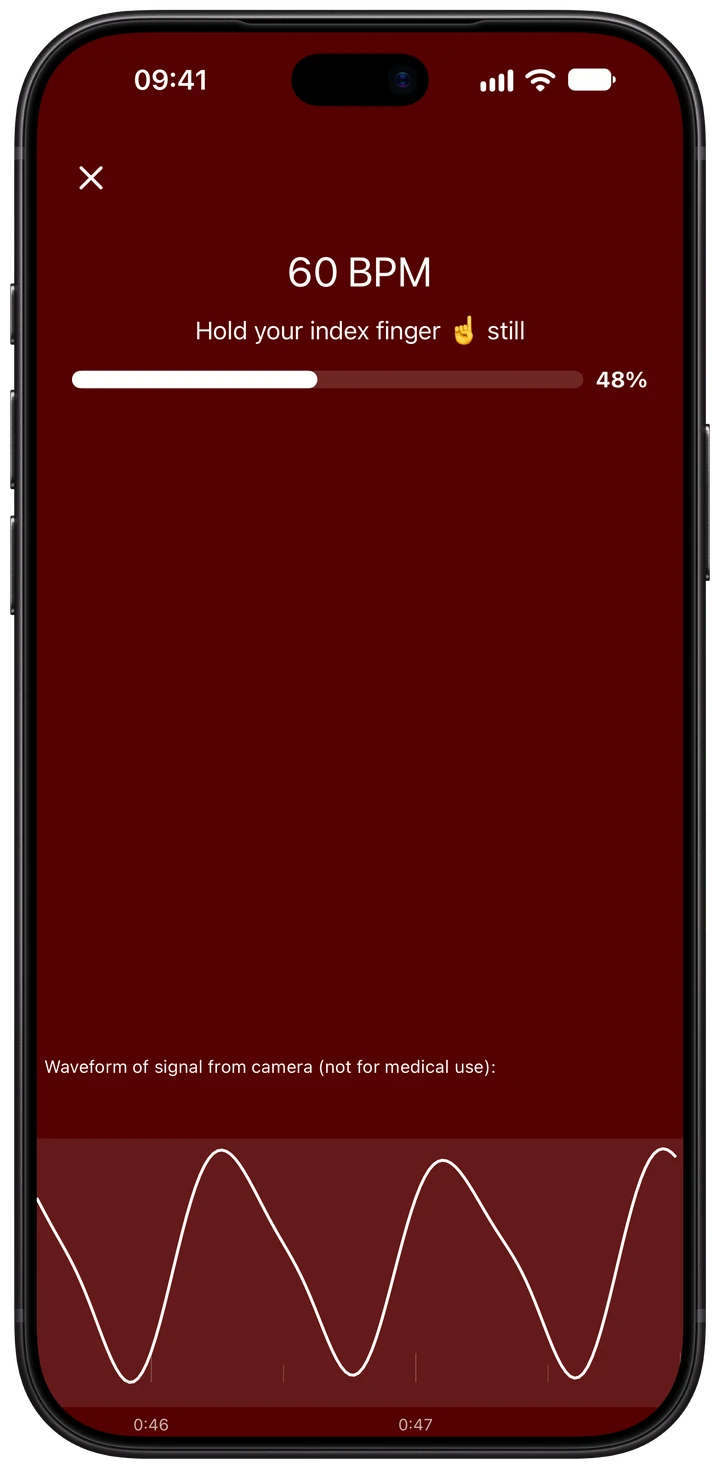
As the flash shines through your fingertip, the camera records changes in light with your pulse. The moving line at the bottom of the measurement screen lets you watch that signal as it arrives.
Your pulse and measurement progress
The number at the top is your current pulse in beats per minute. Below it, the percentage shows how far the app has progressed toward collecting the heartbeat intervals it needs. In the example above, 48% is measurement progress, not 48 seconds or a signal-quality score.
The waveform
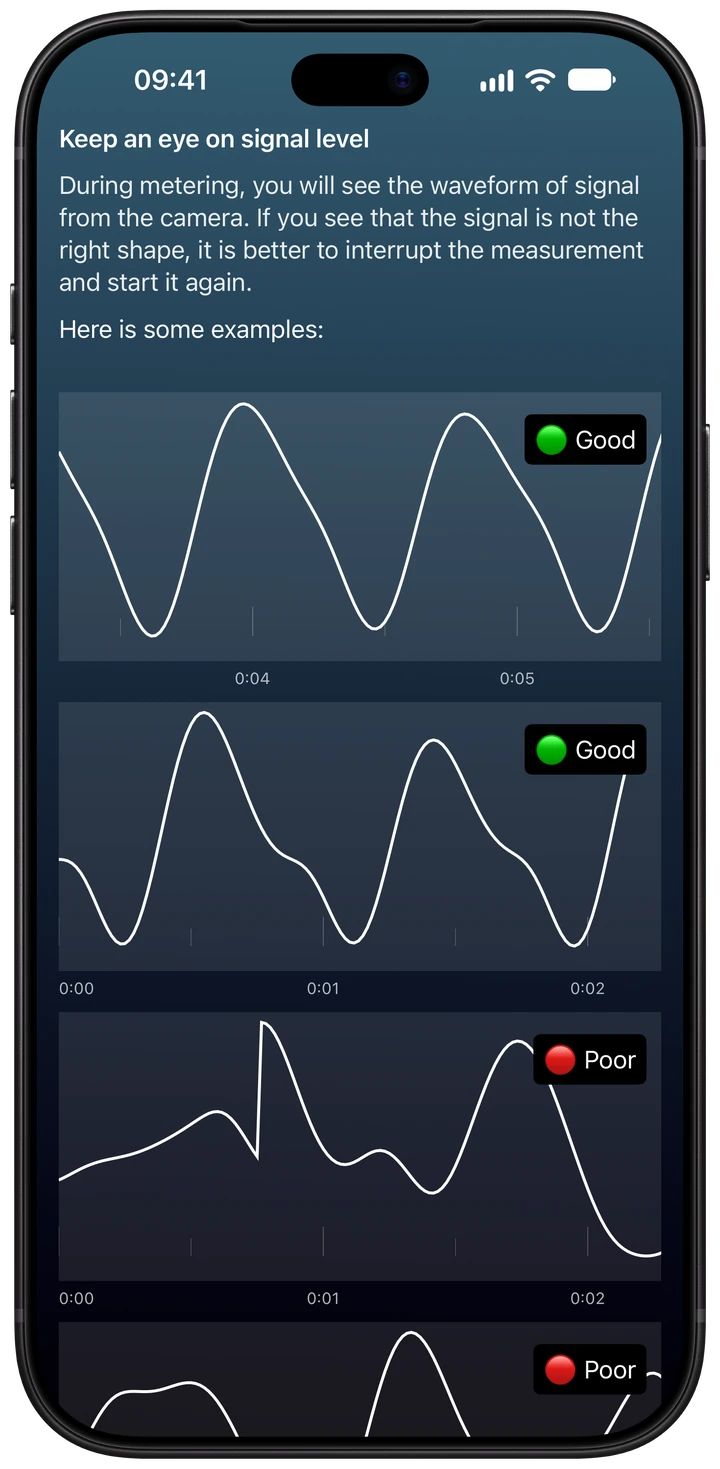
Look for a repeating shape like the examples labeled Good in the app. The marks below the live graph show time in seconds. The graph adjusts its height to fit the signal, so taller waves don't mean a higher HRV.
This is an optical pulse signal, not an ECG. Your HRV result is calculated after the measurement; it isn't the height of the line on this screen.
When the shape looks wrong
Follow the instruction above the progress bar. If the signal stays uneven or loses its repeating shape, check that your finger covers the correct lens and keep your hand still. The in-app guide shows Poor examples to help you recognize when to stop and try again.
If the measurement isn't working
The camera can still see the room
Your fingertip needs to cover the selected lens completely. Check the in-app diagram and reposition your finger. On an iPhone with several rear cameras, it's easy to cover a different lens from the one being used.
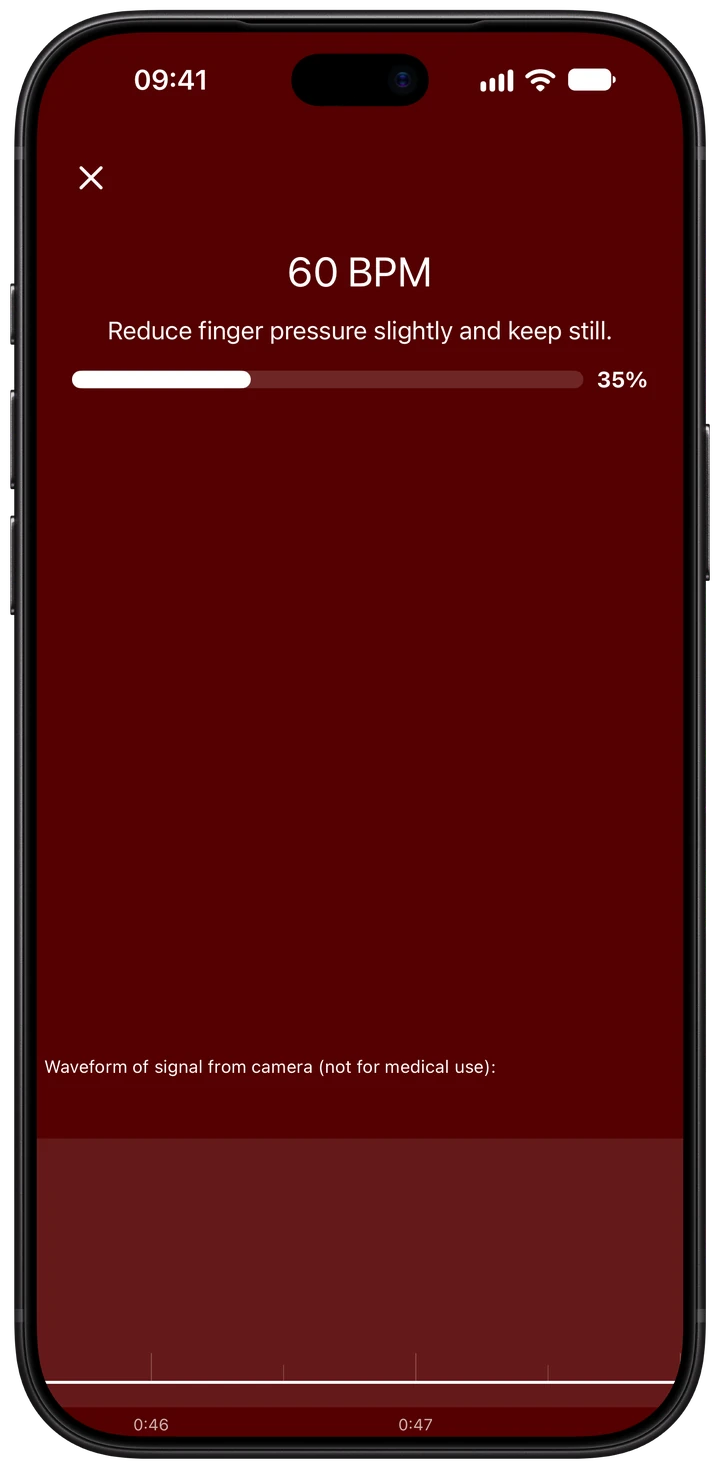
The app asks you to reduce finger pressure
Ease your finger pressure slightly and keep still. Avoid repeatedly lifting or twisting your finger while the app is collecting the signal.
The flash feels too hot
Move your finger a little farther from the flash while keeping the lens covered and letting the light pass through your fingertip. Stop the measurement if holding that position is uncomfortable.
Wellhero reports low measurement quality
Read the message in the app, check your finger position, and try again while keeping still. A low-quality reading is a reason to repeat the measurement before drawing conclusions from its HRV value.
Camera access is unavailable
Check Wellhero's camera permission in your iPhone settings. Camera measurement also requires a flash. Wellhero supports other measurement methods, including Apple Watch and compatible Bluetooth monitors.
Make your readings easier to compare
Keep your measurement routine consistent. Use the same method and similar conditions, remain still, and breathe normally. Compare RMSSD with RMSSD or SDNN with SDNN; the two metrics describe variability differently.
A camera reading and an Apple Watch reading may come from different conditions. The HRV app for iPhone page explains the supported methods, and the HRV metrics guide explains the numbers in your report.
Common questions
Can an iPhone camera measure HRV?
Wellhero uses the rear camera and flash to record a pulse signal from your fingertip and obtain the timing information needed for HRV analysis. Finger position and signal quality matter, which is why the app shows instructions before the measurement.
How long should I keep my finger on the camera?
Keep it in place until the app finishes. Wellhero collects a required number of heartbeat intervals, so the duration isn't identical for every measurement.
Do I need an Apple Watch?
No. The camera measurement uses your iPhone. Apple Watch is a separate measurement option in Wellhero.
Is the result a medical diagnosis?
No. Wellhero is a wellness app. Its readings and estimates don't replace professional medical care.
Try a camera measurement
Download Wellhero on the App StoreHRV app for iPhone · HRV metrics explained · Apple Watch HRV app