
Why Apple Watch heart rate zones differ between apps
Apple Watch and a fitness app can show the same heart rate but assign it to different zones. Start by comparing the actual beats-per-minute limits for each zone. Shared workout data does not guarantee shared zone settings.
By Wellhero · Published
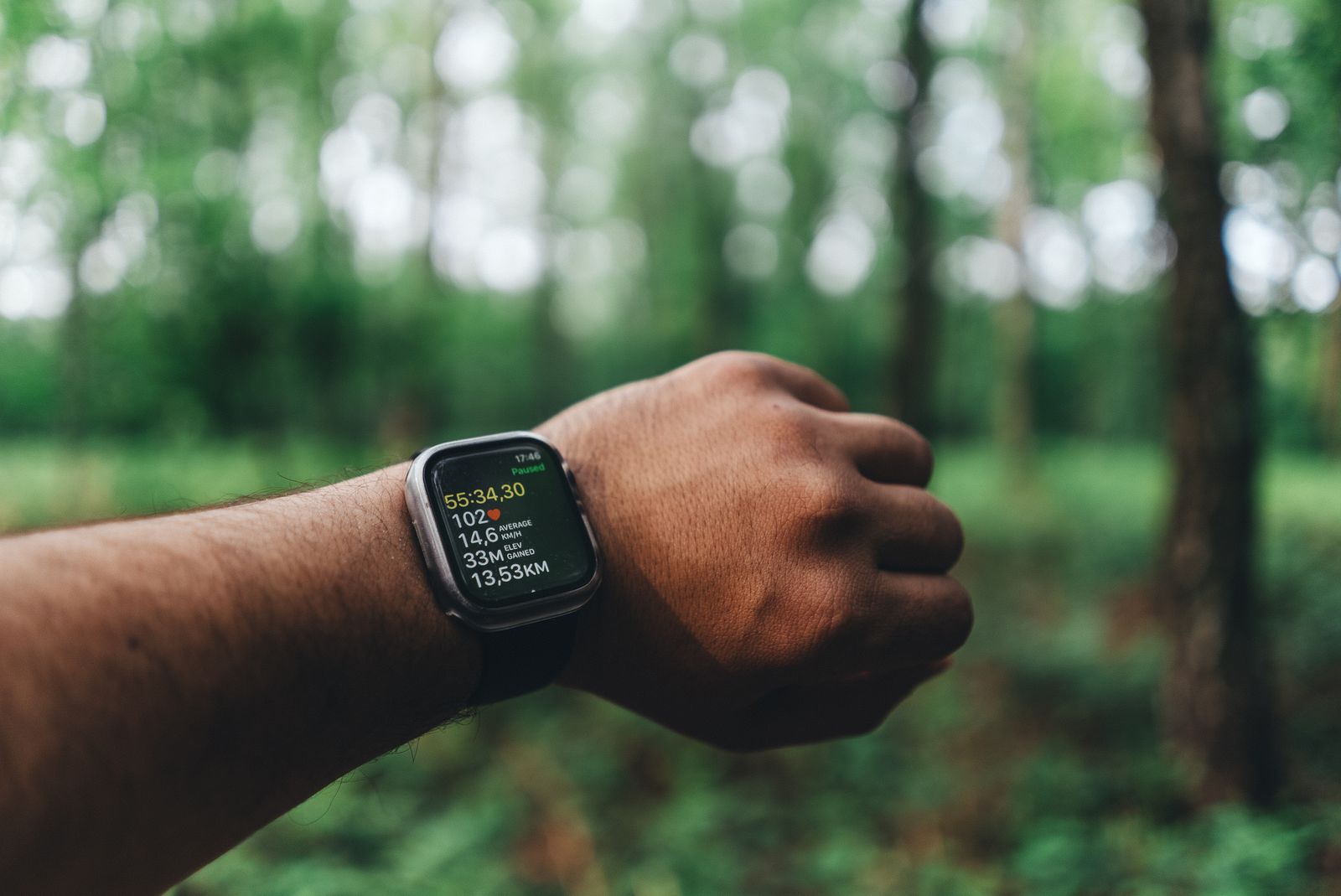
The same pulse can have two zone labels
Suppose both apps show 140 beats per minute at one point in a run. One calls it Zone 2; the other calls it Zone 3. These numbers are an illustration only. If their zone boundaries differ, both labels can follow their own settings correctly.
A zone is a range of heart rates. Apps can build those ranges from a maximum heart rate estimate, from a method that also uses resting heart rate, or from manually entered limits. Two settings called "automatic" need not produce the same ranges.
Apple describes its default zones as personalized from health data and also allows manual limits. Its workout zone documentation separates the zone configuration from the recorded samples and time in each zone. An app can use system zone information or provide a custom configuration; sharing data through Apple Health alone does not tell you which approach it uses.
Compare the two workout reports
Open the same completed session in both apps. A finished workout is easier to compare than two live displays refreshing at different moments.
- Match the session by checking the date, start time, duration and recording device or app. A separately recorded workout may cover a different stretch of time. If you see two copies, use the duplicate workout checklist to identify their sources.
- Compare pulse values at the same time. Use a point on the heart rate timeline where both reports have a reading. Similar averages can hide different gaps or samples, so an average alone is not enough.
- Write down and compare the lower and upper bpm values for Zone 2 and the neighboring zones. Color names and zone numbers are less useful than these boundaries.
- Check how each app obtained its settings. Look for automatic versus manual zones, the selected method, and any maximum or resting heart rate value it uses. An old custom entry can persist even when you expect automatic settings.
If the pulse trace agrees but the boundaries differ, you have found a direct explanation for the different labels. If the pulse values disagree too, investigate the recording and data source before adjusting zone settings.
A recent workout's highest recorded pulse is an observation from that session. It does not establish the highest heart rate you can reach. Avoid copying that number into a maximum-heart-rate field just to make two charts match.
Find Apple's zone settings
On iPhone, open the Watch app, select My Watch, then Workout → Heart Rate Zones. Check whether the zones are automatic or manual and note the displayed limits. Apple's guide also gives the watch route: Settings → Workout → Heart Rate Zones.
To enter your own limits, Apple documents choosing Manual and editing Zones 2, 3 and 4. You do not need to change them to investigate a mismatch. For a completed workout, open Fitness, choose Sessions, select the workout and tap Show More beside Heart Rate. See Apple's instructions for viewing and editing zones.
Then inspect the other app's settings separately. Do not assume that editing Apple's zones has also changed every app that reads your workouts. Check the limits again in the app you use during exercise.
When time in zone still differs
If the boundaries match but zone times differ, check whether both reports cover the same duration, include the same pauses and have heart rate readings throughout. A chart with missing data needs a different investigation from a chart with different zone limits. Our Apple Watch heart rate gaps guide covers that situation.
In Health, open Browse → Heart → Heart Rate, then Show All Data to inspect records around the workout. Data Sources & Access shows which sources contribute. Check the app's read permissions too. Apple's Health data guide explains these controls. Keep the original records while you investigate.
A report's average heart rate also cannot tell you how long you spent in each zone. A steady run and a run with faster and slower stretches can have the same average. Compare the timelines and zone durations directly.
If you recently changed settings, check whether the app applies them to earlier workouts or only future ones. Apps can offer different history controls. An old run can have a new zone distribution when the app reclassifies its recorded pulse using the new limits.
For support, save screenshots of the same workout's timeline and zone boundaries, the selected calculation method, and the app versions. Include the date of any settings change. These details make a mismatch reproducible without deleting your workout history.
Check zones in Wellhero
In Wellhero, the workout report shows the heart rate timeline and time spent in each zone, with the displayed bpm boundaries. Use the Heart Rate Settings shortcut to inspect your limits. Compare those with the other report before interpreting a difference in zone time. The Wellhero workout analysis guide shows where to find these views.
Choose zones for your training
If a training plan asks for Zone 2, check which method and bpm range the plan means. The label alone is not enough to transfer a target between apps. If you work with a coach, use the ranges and workout instructions you have agreed with them.
Matching two apps can make comparisons easier, but agreement between their charts does not validate a training target. Do not change your age or other Health details to force a preferred result, and do not increase effort just to reach a color on the screen.
Compare similar sessions using consistent boundaries, alongside the pulse trace and how the workout felt. If you change methods, note the date so a change in zone time is not mistaken for a sudden change in fitness.