
Apple Watch sleep tracking for night shift workers
Apple Watch can track daytime sleep after a night shift. Set up sleep tracking, wear the watch while you sleep, and check the recorded start and end times in Health. If your shifts rotate, check the next wake-up alarm separately from your repeating schedule.
A daytime sleep session, a nap and a calendar day's total can look different across apps. Before comparing scores, check which hours each report includes.
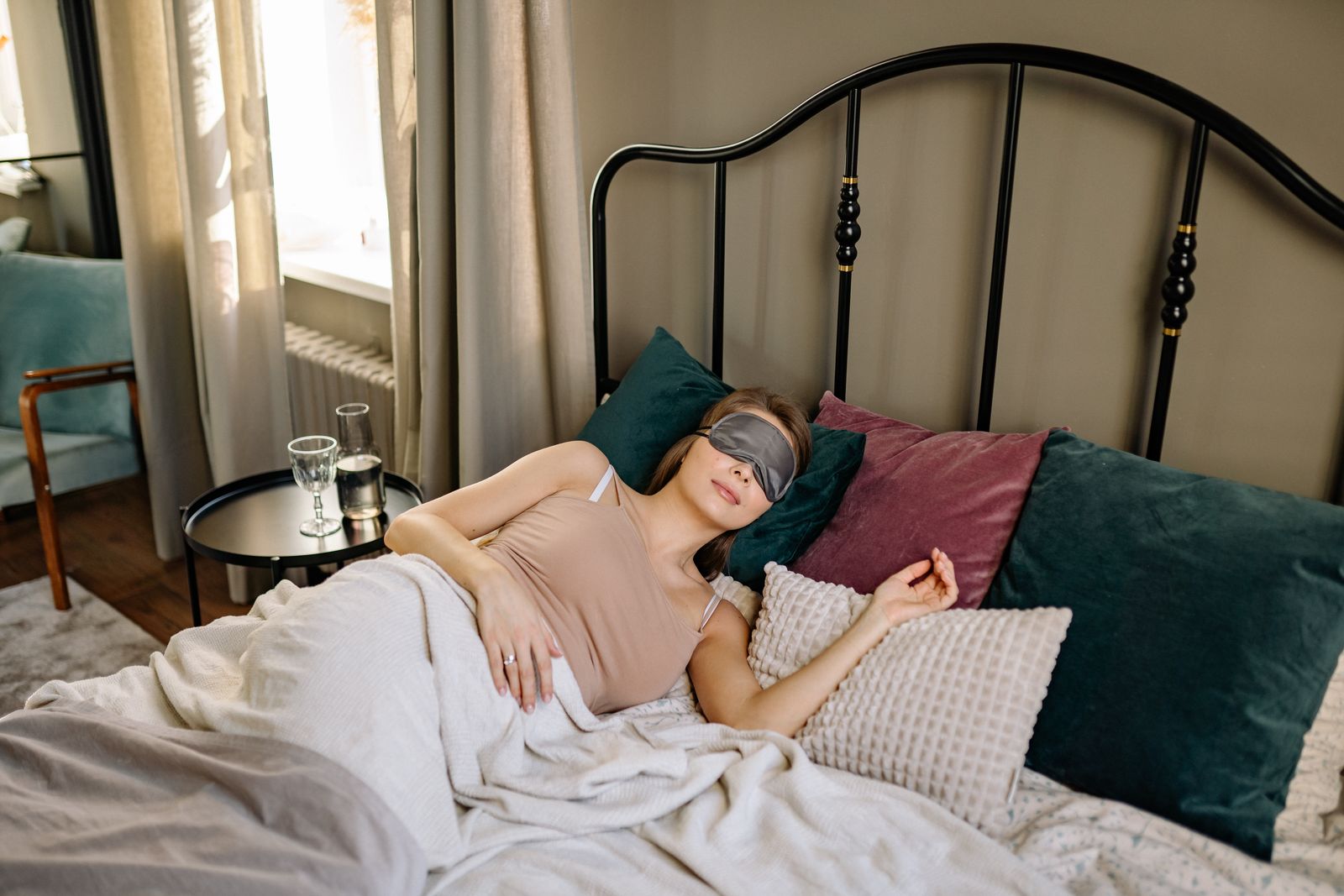
Can Apple Watch record sleep during the day?
Yes. Apple's sleep-tracking report describes support added with watchOS 11 and iOS 18 for sleep outside a set schedule, including users without a schedule. The training data for this expansion included shift workers and frequent nappers.
Older instructions may describe a fixed sleep window. The expanded support still does not guarantee that every daytime session will be detected correctly; inspect the saved record after waking.
A sleep schedule records when you intend to sleep. The watch's saved sleep record estimates when you actually slept. Setting an eight-hour window does not establish that you were asleep for all eight hours.
Set up tracking before your next shift
- Open Health on your paired iPhone, find Sleep and complete its setup if you have not already done so.
- In the Watch app on iPhone, open My Watch, then Sleep, and check that Track Sleep with Apple Watch is on.
- Charge the watch before your planned sleep. Apple recommends at least 30% battery, so a charging routine before your shift or after arriving home may suit you better than charging while you sleep.
- Wear the watch with a comfortable, snug fit. Check the next alarm before settling down, especially when you switch between day and night shifts.
Apple's sleep setup instructions cover tracking, charging and viewing your sleep history. Keep the watch and phone updated to the latest versions they support.
Sleep Focus reduces distractions while you rest. Review when it turns on, so your old nighttime bedtime does not trigger it during a shift.
Handle a rotating sleep schedule
For shifts that repeat each week, open Full Schedule in the Sleep app. Set the days it applies to, then your bedtime and wake-up time. Apple supports multiple schedules. Check the active days as well as the clock times when you edit one.
For a one-off change, edit the next wake-up alarm. Apple's schedule guide explains that the normal alarm resumes after the next wake-up. An edit to the full schedule changes future occurrences, so choose it only when that is what you intend.
For example, if you normally wake at 6 a.m. but will sleep after an overnight shift tomorrow, review the next alarm before going to bed. After that sleep, check the following alarm too; a one-off change has not rewritten the rest of your roster.
If your rota does not fit a weekly pattern, review each upcoming sleep period. Apple's Sleep settings guide also describes controlling Sleep Focus manually instead of having it follow a schedule. Use that option if you prefer to turn Sleep Focus on when you actually go to bed.
Check which sleep hours the report includes
Suppose you sleep from 9 a.m. to 3 p.m., then take another short sleep before work. Those are two separate periods. Look for both in Health, then check whether the other app includes both in its total.
A different total in another app
The exact start and end times, any additional sleep, and the source of the records.
Sleep appears under an unexpected date
Open the session and inspect its timestamps. A date label alone is not enough to identify missing hours.
A short sleep has no stage breakdown
Check whether Health saved only Asleep. Missing stage labels do not establish that you had no REM or deep sleep.
Hours match but scores differ
Read each score's explanation. Matching duration does not make scoring methods identical.
In Health, use Sleep's Show All Data to inspect entries and Data Sources & Access to see which devices or apps contribute records. Apple explains how to inspect Health data sources. If another app also saves sleep, check its entries before adding anything manually.
Keep a short note of when you went to bed, when you woke and whether the session followed a night shift. Compare similar shifts when reviewing trends. Otherwise a change from daytime sleep to nighttime sleep may be hidden inside a single average.
For missing detail, use our sleep-stage troubleshooting guide. If the records match but ratings differ, read why sleep scores differ between Apple Watch, Garmin and Wellhero.
Reviewing sleep in Wellhero
Wellhero analyzes sleep records from Apple Health and shows duration, available stages and history. Open the sleep report after syncing and check the selected session against Health. The Wellhero sleep guide explains the report and its charts. If a session is absent, open Apple Health Data in your Wellhero profile, then Health Status and Sleep to inspect sync status.
If daytime sleep is missing
Start in Health. If the session is absent there, check the watch's tracking setting, battery and whether you wore it throughout that sleep. If Health has the session but another app does not, check that app's sleep permissions and sync status. Also inspect the neighboring dates before assuming a record has vanished.
When asking for support, include your watch model, iOS and watchOS versions, the actual sleep times and a screenshot showing the relevant Health entries. Say whether the problem is missing duration, missing stages or a different score. Do not relabel an unknown sleep stage as Core just to make a report appear complete; that would add an assumption to the record.