
Resting vs sleeping heart rate on Apple Watch
Resting heart rate and sleeping heart rate are not always the same measurement. Apple describes its resting estimate as a value from quiet periods while you are awake. Some recovery apps use your heart rate during sleep instead. Both can come from one Apple Watch and still show different numbers.
Check the label, source and time period before comparing apps. A nightly average, the lowest reading of the night and a current pulse reading answer different questions.
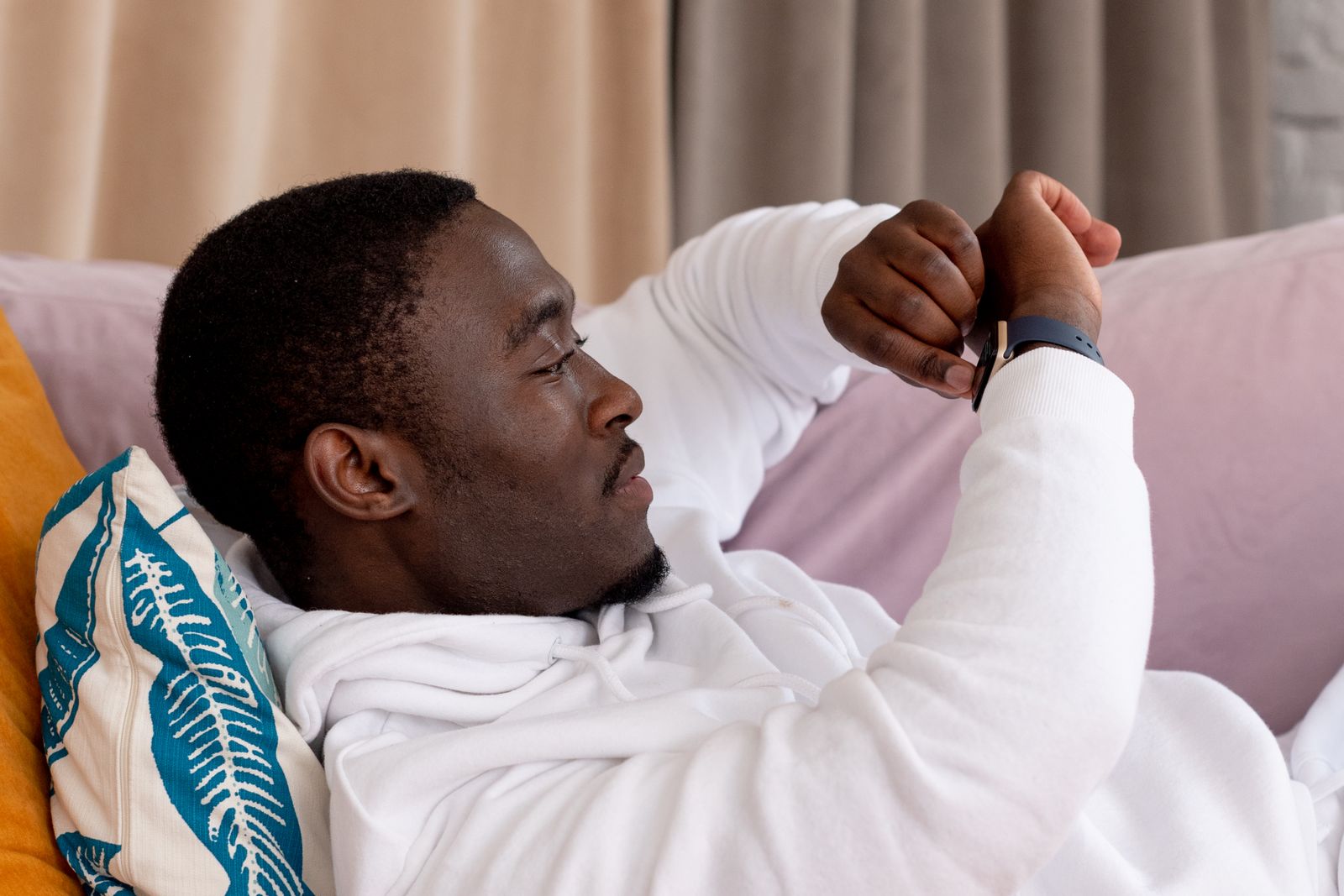
Which heart rate are you comparing?
A current heart-rate reading tells you how fast your heart is beating around the time you check it. Opening the watch's Heart Rate app gives you a new reading; it does not make that reading your daily resting heart rate.
Resting heart rate, often shortened to RHR, is an estimate built from readings that a device or app selects as rest. The word "resting" does not tell you whether the selection covers quiet waking time or sleep.
Sleeping heart rate describes readings during a sleep session. The display may show an average, a range or the lowest recorded value. For example, a nightly average of 58 beats per minute and a minimum of 50 are different summaries of the same possible set of readings. Those example numbers are not personal targets or a normal range.
Apple's heart-rate guide distinguishes current readings from resting, walking and workout views. Read the full metric label before comparing screenshots.
Why Apple Health, Athlytic and Bevel can differ
Apple's November 2024 heart-rate report describes a resting estimate based on inactive waking periods, excluding readings during Sleep Focus, scheduled Bedtime or sleep. It also describes updates during the day. Its description of RHR therefore covers a different period from an overnight average.
Athlytic's Recovery Preferences include "Enable Athlytic to Save Resting Heart Rates." When enabled, Athlytic says it saves a daily RHR sample to Apple Health based on average heart rate during sleep. With it off, Athlytic says Recovery may change as Apple's RHR value updates during the day.
Bevel's documentation describes its resting heart rate as tracked during sleep, rather than using Apple Health's RHR. Check the installed app's calculation settings when comparing its value with another screen.
An app can therefore write a value that you later see inside Apple Health. Inspect the individual entry to find out who supplied it.
These descriptions explain which readings the apps summarize. They do not compare sensor accuracy, and methods or settings can change with app versions.
Why the overnight number can be different
Your heart rate does not stay fixed throughout a night. In a laboratory study of 14 healthy young participants, researchers recorded sleep and heart activity over three nights. They found differences in the body's control of the heart across sleep stages, and heart rate also varied with time within the recording period.
Sleep therefore includes different measurement conditions. The study does not set a target difference between your waking and sleeping pulse or validate an app's recovery score.
An average uses several readings; a minimum shows the lowest one. Changing the included sleep interval can change either result. A lower number in a different app is therefore not enough to show that your fitness improved overnight.
If you sleep during the day, compare the actual sleep session rather than assuming that every app's day begins at the same point. Our night-shift sleep guide explains how to inspect that recorded interval.
Check the source and time period
- Write down the two values, their full labels and the selected date. Note whether each is a current reading, daily resting estimate, sleep average or minimum.
- In Health on iPhone, find Heart, then Resting Heart Rate. Use Show All Data to inspect the day's entries and their sources. Data Sources & Access shows which apps and devices contribute to that category.
- Open Heart Rate and inspect the times covered by the sleep report. Also check the saved Sleep session's start and end. Missing readings or a different sleep interval can mean the apps have different data to summarize.
- Review the recovery app's source and calculation settings. Check whether it saves an RHR entry to Health, and note when each screen last updated. If the definitions appear to match but the values still differ, send those details to the app's support team.
Apple's guide to Health data explains record and source inspection. You can inspect these details without deleting a lower value, reordering sources or turning off sharing to make two numbers match.
Changing a source preference can change what a summary includes. If you choose to change a setting, keep a note of the date and setting so you can recognize that change in your history. Preserve the original records while you investigate.
Which number should you follow?
For a personal trend, compare the same metric from the same source over time. Compare today's Apple resting estimate with earlier Apple resting estimates, or an app's sleep average with its earlier sleep averages. Switching between the lowest overnight value and an awake estimate makes the trend difficult to interpret.
A single manually checked pulse is useful information about that moment. It cannot reproduce a whole night's average. A recovery score interprets the app's inputs. Choosing the higher score does not settle which heart-rate definition is correct.
Keep notes about the recorded sleep, recent activity and how you feel alongside the number. If the disagreement is in heart rate variability, the variation in time between beats, see why HRV apps show different numbers. HRV is a separate measurement from pulse in beats per minute.
Inspecting recovery in Wellhero
Wellhero's Recovery screen shows the heart-rate and HRV readings behind its assessment, their history and how they compare with your usual levels. Open those details before comparing the headline score with another app. The Wellhero recovery guide shows where to find the report. A difference between app summaries alone does not identify a health problem.
When to ask for help
For an unexplained app mismatch, send support the date, metric names, source names, relevant sleep times and app/watch versions. Include screenshots of the affected entries, with unrelated health details cropped out. Do not clear your history to troubleshoot a comparison.
Symptoms need attention even if a wearable summary looks reassuring. Palpitations are a noticeable racing, pounding or irregular heartbeat. NHS guidance advises medical review for palpitations that keep returning, happen more often or last longer than a few minutes. Seek emergency medical help for current palpitations that do not go away, or palpitations with chest pain, shortness of breath, feeling faint or fainting. If these symptoms have stopped, seek urgent medical advice. An average or recovery score cannot rule out the reason for those symptoms.